Movement
WASD or the arrow keys usually control movement, giving players a predictable foundation before any advanced actions are introduced.
No games found
Unihfy Games
Loading identity...
Quick Access
Learn how keyboard controls in browser games work, why layouts like WASD are so common, what popular gaming keys usually do, and how to troubleshoot common keyboard input problems while playing.
Format
In-Depth Guide
Reading Time
10 min read
Published
July 5, 2026
Written by
Founder · Writer
Nikunj Hirpara founded Unihfy Games and decides what the site works on next. He writes the explanatory guides about how browser games work, and the geography and sports quizzes.
View Author ProfilePlayer Guide
The first time you launch a browser game, the keyboard shortcuts can seem like a random collection of letters and symbols. In reality, most games follow familiar control patterns that players gradually recognize over time. Movement keys are usually grouped together, nearby buttons are reserved for actions you perform frequently, and different genres organize controls around the kinds of decisions players make most often. Learning these common conventions means you spend less time searching for the correct key and more time enjoying the game, even when playing something completely new.
Understand why WASD and arrow keys are common movement layouts
Recognize the purpose of frequently used action keys
See why different genres organize controls differently
Troubleshoot common browser keyboard input problems
Learn unfamiliar control schemes more quickly
The Big Picture
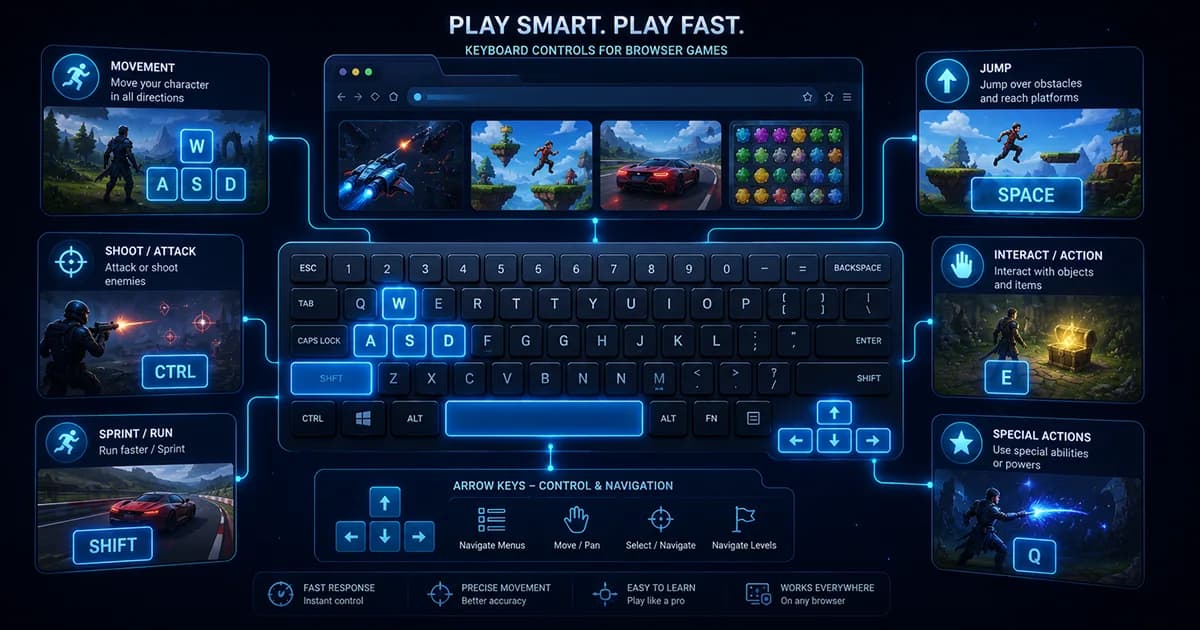
Most browser games arrange actions around groups of nearby keys so important commands remain easy to reach without moving your hands too far.
WASD or the arrow keys usually control movement, giving players a predictable foundation before any advanced actions are introduced.
The Space bar, mouse button, or another nearby key often performs the action you'll use most, such as jumping, attacking, or confirming.
Keys like E or F frequently trigger interactions with objects, doors, switches, or characters when the situation calls for it.
Shift and Ctrl commonly change how another action behaves, such as sprinting, crouching, aiming, or activating an alternate ability.
Number keys often let players switch between weapons, tools, abilities, inventory slots, or other quick-access options.
Escape or another dedicated menu key usually opens settings, pauses gameplay, or exits the current screen without affecting movement controls.
Movement Controls
If you've played more than a few browser games on a desktop or laptop, you've almost certainly seen the letters W, A, S, and D used for movement. The layout is so common that experienced players often reach for those keys automatically, even before reading the instructions. That familiarity isn't the result of a single game creating a universal standard. Instead, it developed because the arrangement is practical, comfortable, and leaves room for many other actions nearby. The four keys sit close together under the left hand. Without stretching very far, your fingers can reach movement controls while still staying close to other frequently used keys such as Shift, Ctrl, Q, E, R, F, Tab, and the number row. Designers often place important actions around this cluster because it minimizes unnecessary hand movement during gameplay. Another reason WASD works well is that many browser games also expect players to use the mouse. In action games, shooters, adventure games, and many strategy titles, the right hand naturally rests on the mouse while the left hand handles movement. This split lets players move, aim, interact, and perform actions at the same time without constantly repositioning their hands. Although the letters themselves have no special meaning, their directions are easy to remember after a little practice. W generally represents moving forward or upward, S usually moves backward or downward, while A and D commonly move left and right. In side-scrolling games, 'forward' may simply mean moving toward the next part of the level, while in top-down games those same keys often correspond directly to north, south, east, and west on the screen. Not every browser game uses WASD. Many puzzle games, retro-inspired titles, family-friendly games, and simple arcade experiences continue to use the arrow keys because their symbols clearly show direction. Some games even allow both layouts so players can choose whichever feels more comfortable. Genre also influences movement design. A fast action game may combine movement with mouse aiming, making WASD especially convenient. A turn-based strategy game might only need a few directional inputs, while a platform game may rely heavily on jumping and precise timing. The movement layout is chosen to support the kind of decisions players make most often rather than following a rule that every game must obey. As more games adopted similar layouts, players became familiar with them. That familiarity encouraged future developers to keep using comparable controls because new players could transfer what they had already learned from one game to another. Today, WASD is best understood as a widely shared convention built around comfort and efficiency instead of an absolute standard that every browser game must follow.
Under the Surface
A keyboard command passes through several simple stages before the game responds. Understanding these layers helps explain many common input issues players encounter.
Everything starts when you press a key on the keyboard. The keyboard detects that input and sends it to your computer.
Your operating system recognizes which key was pressed and makes that information available to the active application.
The browser checks which page or element currently has keyboard focus. If you've clicked somewhere else, switched tabs, or selected a text box, the game may not receive the key press.
Once the game receives the input, it compares the key with its control layout. The assigned action might be movement, jumping, interacting, opening a menu, or another gameplay command.
The game performs the action and immediately updates what you see, whether that's moving a character, activating an ability, pausing the game, or interacting with an object.
Common Control Patterns
After learning movement, most players quickly notice another pattern: important actions are usually placed close to the movement keys. This keeps both hands comfortable and reduces the distance your fingers need to travel during fast gameplay. Although every game chooses its own layout, many browser games reuse similar locations because they are easy to remember and practical during play. The Space bar is one of the most recognizable gaming keys because it is large, easy to reach with your thumb, and difficult to miss during intense moments. In platform games it often controls jumping, while action games may use it for dodging, confirming an action, firing a special move, or another primary ability. Rather than representing one specific action, Space usually performs something that players use frequently. Shift and Ctrl often act as modifier keys. Instead of replacing movement, they change how another action behaves. In many games Shift is associated with sprinting or moving faster, while Ctrl commonly appears as crouch, defense, aiming, or another secondary action. Since these keys sit directly beside the movement cluster, they can be pressed without lifting your hand away from directional controls. Keys such as E and F are commonly used for interaction. When your character approaches a door, chest, switch, conversation prompt, or collectible object, these keys often perform the context-sensitive action. Their location beside the movement keys makes them convenient because players usually interact immediately after walking toward something. R frequently represents refreshing or restoring something within gameplay. In shooting games it commonly reloads a weapon, while in puzzle, arcade, or simulation games it may restart a level, reset a challenge, or quickly repeat an attempt. The exact purpose changes with the genre, but it usually supports an action players perform regularly. Q often serves as a secondary ability, equipment shortcut, quick swap, rotation command, or special skill. It is less standardized than Space or Shift, yet many developers place optional abilities here because it remains easy to reach without leaving the movement keys. The number row provides a simple way to access multiple options without opening a menu. Action games may switch weapons, strategy games may activate abilities, role-playing games may select inventory slots, and simulation games may choose tools or building options. The more available actions a game contains, the more useful the number keys become. Escape almost always serves a navigation role rather than affecting your character directly. It commonly pauses gameplay, opens settings, closes menus, exits certain screens, or returns to a previous interface. Because players expect Escape to provide a way out of the current situation, many browser games preserve that familiar behavior. These layouts should be viewed as conventions instead of strict rules. Some games simplify the controls by using only a handful of keys, while others introduce entirely different arrangements to better support their mechanics. Once you recognize the overall pattern—movement at the center, frequent actions nearby, and less common commands slightly farther away—you'll find it much easier to understand unfamiliar control schemes.
How It Flows
Instead of trying to memorize every key immediately, build your understanding one layer at a time.
Before jumping into gameplay, spend a few seconds checking any control guide, tutorial, or opening screen that explains the basic inputs.
Learn how your character moves before worrying about advanced abilities. Comfortable movement makes every other action easier to understand.
Find the key used most often, such as jumping, attacking, interacting, or confirming actions, and repeat it until it feels natural.
Once the basics feel comfortable, introduce sprinting, abilities, inventory shortcuts, or other optional commands one at a time.
Notice whether actions require a quick tap, holding the key, or combining it with movement. Visual and audio feedback often teaches the controls naturally.
After a few minutes of regular play, your hands begin reaching for common keys automatically, allowing you to focus on the game instead of the keyboard.
Practical Tip
Most browser games introduce controls in layers. Focus on the actions you use most often first, then gradually add the rest as the game becomes more complex.
Learn movement before anything else.
Identify the action you'll perform most frequently.
Add secondary keys one by one instead of memorizing the whole layout.
Notice whether actions require tapping, holding, or combining keys.
Revisit the control guide whenever new mechanics appear.
Continue the journey
Troubleshooting
Most keyboard problems in browser games are surprisingly simple to solve once you understand how input reaches the game. When a key does nothing, it doesn't always mean the controls are broken. Often the browser, the keyboard, or the current screen is handling the input differently than you expect. One of the most common situations is browser focus. Many browser games only begin listening for keyboard input after you click somewhere inside the game window. If you open the page and immediately start pressing keys, nothing may happen because another part of the page still has focus. A single mouse click inside the game usually fixes this. Text fields can also capture keyboard input. If your cursor is active inside a search box, chat window, username field, or another text area, your key presses may produce letters instead of controlling your character. Clicking back into the game returns keyboard input to gameplay. Switching browser tabs has a similar effect. When another tab becomes active, the browser naturally sends keyboard input there instead of to the game. Returning to the game tab and clicking inside it again is often enough to restore normal controls. Some key combinations may also trigger browser shortcuts before the game has a chance to use them. For example, certain combinations are reserved for browser features, page navigation, or system functions. Because these shortcuts have higher priority, the game may never receive those particular inputs. Most browser games avoid assigning important actions to commonly reserved shortcuts, but occasional conflicts can still happen. Laptop keyboards sometimes feel different from full-size desktop keyboards. The placement of certain keys may change slightly, some layouts include compact function rows, and smaller keyboards can make unfamiliar control schemes feel awkward until your hands adjust. External keyboards may also use different physical layouts depending on language or region, even though the game itself still expects the same general control pattern. Another concept that occasionally surprises players is key rollover, sometimes discussed alongside ghosting. In simple terms, some keyboards have limits on how many particular keys they can reliably detect at exactly the same moment. If you hold several movement keys while pressing another action, an older or more basic keyboard might fail to register one of them. This doesn't affect every keyboard, and it usually appears only during specific key combinations rather than all simultaneous inputs. Accessibility settings and browser behavior can also influence keyboard input. Sticky Keys, alternative keyboard layouts, browser extensions, or accessibility tools may intentionally change how certain keys behave. These features are valuable for many users, but it's helpful to remember that they can alter the way a game responds compared with its default control scheme. When controls feel inconsistent, the simplest troubleshooting steps are usually the most effective. Confirm that the correct browser tab is active, click inside the game area, check that no text box is selected, review the control settings, and try the expected keys again before assuming the game itself is at fault. In many cases, the solution takes only a few seconds once you understand how browser input works.
Myth vs Reality
The Myth
WASD is always better than the arrow keys.
The Reality
Each layout has strengths. WASD leaves nearby keys available for extra actions, while arrow keys are simple and intuitive for many games.
The Myth
Pressing a key harder makes the game respond faster.
The Reality
Most standard keyboards simply detect whether a key has been pressed, not how much force you used.
The Myth
Every game uses the Space bar to jump.
The Reality
Space is a common primary action key, but some games assign it to attacking, confirming actions, dodging, or other important commands.
The Myth
If two keys work separately, they will always work together.
The Reality
Some keyboards have limitations with certain simultaneous key combinations, which is why a few inputs may occasionally fail when several keys are held together.
The Myth
Keyboard controls should feel natural immediately.
The Reality
Most layouts become comfortable after a short period of practice as your hands develop muscle memory.
The Myth
A browser game always receives keyboard input automatically.
The Reality
Many browser games require the game window to have focus before they can respond to your key presses.
Quick Reference
These common terms appear frequently in browser games and control guides.
A four-key movement layout using W, A, S, and D for directional control.
The keyboard key assigned to perform a specific action in a game.
Any command you give the game using the keyboard, mouse, or another controller.
The part of the browser currently receiving keyboard input.
A key such as Shift or Ctrl that changes or adds to another action.
A keyboard's ability to recognize multiple keys being pressed at the same time.
A situation where certain combinations of simultaneous key presses may not all register correctly on some keyboards.
A key or key combination that quickly performs a command in a browser or game.
Quick Overview
Learn the movement keys before worrying about advanced abilities or shortcuts.
Frequently used actions are usually placed close to movement controls for comfort and speed.
Many games follow familiar layouts, but developers adapt controls to suit different genres and mechanics.
If a game isn't responding, check whether the browser and the game window are currently receiving keyboard input.
Build confidence with the essential actions first, then gradually introduce additional keys.
Repeated play helps your hands remember common key positions so you can concentrate on the gameplay itself.
Guide Complete
Keyboard controls become much less intimidating once you recognize the ideas behind them instead of trying to memorize every key. Movement forms the foundation, frequently used actions stay close to your resting hand, and additional commands are placed where they remain easy to reach without interrupting gameplay. Different genres naturally arrange controls in different ways because they ask players to perform different kinds of actions, but many still follow these same underlying principles. Browser games also depend on the page having keyboard focus, so occasional input problems are often caused by the browser rather than the game itself. As you play more titles, familiar control patterns begin to stand out, making it quicker to understand new layouts and easier to adapt when a game introduces something different.
Learning the movement controls first gives every other keyboard action a clear foundation.
Nearby keys are usually organized by how often you'll need them during normal gameplay.
Action, puzzle, strategy, and simulation games prioritize different inputs while still following many familiar conventions.
You don't need to memorize every key immediately—consistent play naturally builds confidence and muscle memory.
Guides
Learn the real differences between arcade, puzzle, and strategy games. Discover how each genre rewards different skills, suits different moods, and helps you choose the right game for every session.
Guides
Explore how online games evolved from early networked computer experiments into today's connected ecosystem of multiplayer worlds, browser games, mobile play, cross-platform experiences, and live online communities.
Guides
A clear guide to how browser games remember player progress, covering local saves, account-based saves, cloud synchronization, and why progress sometimes appears on one device but not another.
Guides
A practical guide to playing HTML5 browser games on smartphones and tablets, covering orientation, touch controls, performance, and how to fix common mobile gaming problems.
Continue Exploring
Jump into browser games or challenge yourself in Quiz Arena. There's always something new to discover.