The Myth
01Faster internet will fix a laggy browser game.
The Reality
Only in online multiplayer. A single-player game runs on your device once it has loaded.
No games found
Unihfy Games
Loading identity...
Quick Access
Browser game lagging or stuttering? Work out which kind of lag you have, then fix it: power settings, hardware acceleration, busy tabs, extensions, zoom, heat and drivers, with a quick checklist for Chrome, Edge and Firefox.
Format
Curated Article
Reading Time
9 min read
Published
October 29, 2026
Written by
Developer · Game Reviewer
Kaushik Hirpara is a full-stack developer and game reviewer at Unihfy Games. He designs and builds every game on the site, gets them playing well on phones, and writes up what players need to know.
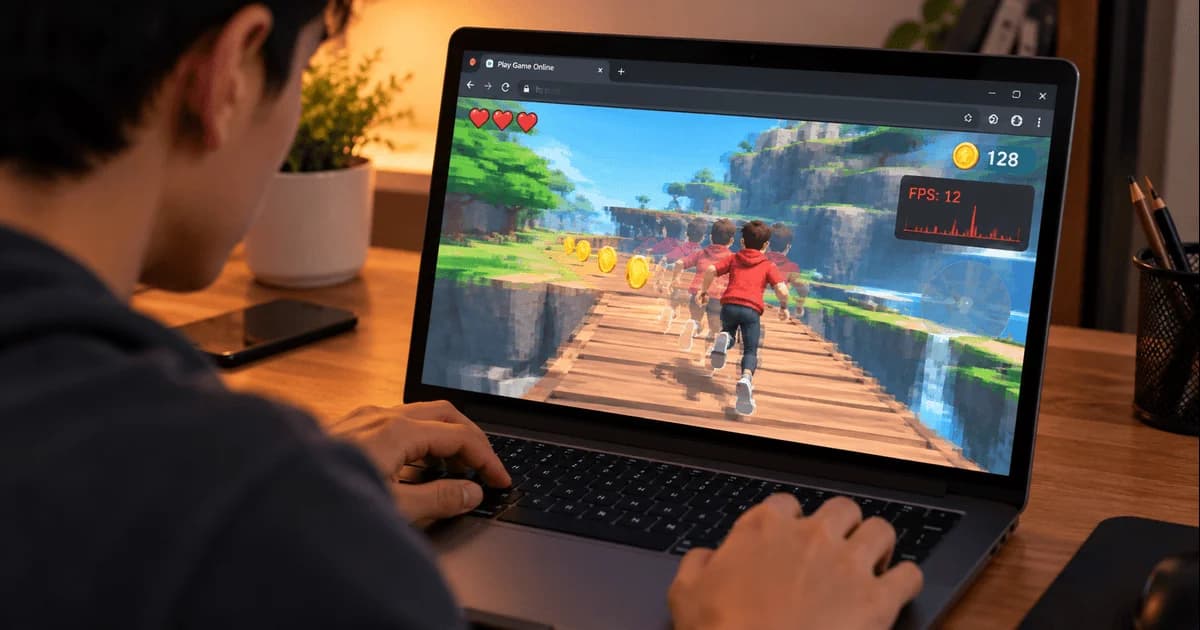
View Author ProfileYou open a game and something feels off. The character moves in little jumps instead of gliding, a jump lands a beat after you pressed it, and every few seconds the screen freezes and catches up. Yesterday the same game felt smooth.
It is tempting to blame the computer or the game. More often, the cause is something you never connected to games at all: a laptop on battery saver, a video in another tab, graphics acceleration switched off, or the page still zoomed to 150% from something you were reading.
Browser lag is usually fixable in a few minutes without buying anything. The trick is to stop treating 'lag' as one problem. It is several problems that look alike, and each has its own fix.
Everything moves in visible steps, like a flip book with pages missing. Usually a power, graphics or resolution problem.
Smooth most of the time, then a sudden hitch. One frame is taking far longer than the rest, often because of something running in the background.
The picture looks smooth but your presses arrive late. The delay sits between your hand and the screen.
Other players jump around or your actions get undone. Only online games have this; a single-player game does not.
Smooth for a few minutes, then gradually worse. Often heat: a warm laptop or phone slows itself down to protect its parts.
Most screens refresh 60 times a second, so to look smooth a game has about 16.7 milliseconds to make each picture. In that time it reads your input, moves everything in the world and draws the whole scene.
When the computer cannot keep up, the game drops to 45 or 30 frames a second, and you see choppiness. Stutter is different: the average may be fine, but one frame takes 100 milliseconds instead of 16, and your eye catches that single gap. A steady 45 can feel better than a 60 that hitches. A slow frame also delays your button press reaching the screen, which is why a low frame rate makes controls feel heavier too.
We wrote about the game-design side of this in Why Some Games Run Well on Old Laptops. This guide is the other half: what you can change on your side.
Plug your laptop in, close every other tab, open the game in a new window and reset the zoom with Ctrl + 0 (Cmd + 0 on a Mac). If the game is now smooth, the game was never the problem. Something around it was, and the fixes below will help you find out which.
This is the most common cause of a game that suddenly feels worse on a laptop. On battery, and especially in a power-saving mode, laptops lower their processor and graphics speed to make the charge last.
Check three places. Plug in if you can. Check the system power mode: on Windows 11 it is in Settings > System > Power & battery, and on a Mac make sure Low Power Mode is off in System Settings > Battery. Then check the browser itself: Chrome's Energy Saver (Settings > Performance) and Edge's efficiency mode (Settings > System and performance) can limit animations and frame rates to save power.
Most 3D browser games, and many 2D ones, draw with WebGL, which runs on your graphics chip. If the browser has graphics acceleration switched off, it falls back to the main processor, which is far slower at this job.
In Chrome, look in Settings > System for 'Use graphics acceleration when available' (older versions say hardware acceleration). Edge has the same switch under Settings > System and performance. In Firefox, go to Settings > General > Performance and untick 'Use recommended performance settings' to reveal the option. Relaunch the browser afterwards, then type chrome://gpu (or edge://gpu) into the address bar: next to WebGL it should say 'Hardware accelerated'.
Many Windows laptops also have two graphics chips, a battery-saving one and a more powerful one, and browsers are often given the weaker chip. In Settings > System > Display > Graphics, find your browser, open its options and choose High performance.
A game shares the computer with everything else that is open. A video in a background tab, a video call, a big download, a launcher updating itself or a system update can each take enough power to cause stutter.
Chrome and Edge have their own task manager: press Shift + Esc to see what each tab and extension is using. In Firefox, type about:processes into the address bar. Low memory matters too: when it runs out, the computer starts using the disk instead, and that shows up as freezes. If you keep dozens of tabs open, closing most of them often helps more than any setting.
Extensions can run their own code on every page you visit, including game pages, and one badly behaved extension can add work to every frame.
The quickest test is a private window (Incognito in Chrome, InPrivate in Edge), where extensions are usually off unless you have allowed them. If the game runs better there, switch your extensions off one at a time to find the culprit. Progress saved in a normal window will not show in a private one, so do not worry if your saves seem to be missing.
Every pixel has to be drawn, every frame. Zooming the page in makes many browser games draw at a higher resolution, so a page left at 150% can quietly make a game work much harder. Ctrl + 0 puts it back to 100%.
Size matters in the same way. A game in fullscreen on a large, high-resolution monitor has far more pixels to fill than the same game in a smaller window. If fullscreen is choppy, try a normal window.
If a game starts smooth and slowly gets worse, think about heat. A hot laptop slows itself down to stay safe, which is called thermal throttling. On a bed, a sofa or your lap it cannot breathe through its vents, so play on a hard, flat surface.
Then update. Browser updates regularly improve graphics performance, and graphics drivers matter even more, because the browser relies on them for everything it draws. Very old or buggy drivers are sometimes blocked from graphics acceleration altogether.
Not every stutter is your setup. The first time a game shows a new effect or area, the browser may need a moment to prepare it, which can cost one long frame. A hitch in the first few seconds is common and harmless. It should not keep happening to the same thing; if hitches come every few seconds forever, look back at step 3.
Often, no. A single-player browser game downloads once and then runs entirely on your device, so after it has loaded, your Wi-Fi has nothing to do with how smoothly it plays. A slow connection makes a game take longer to start, but it cannot make your character move in steps.
Online multiplayer games are different, because they keep talking to a server while you play. There, ping really matters, and a wired connection or sitting closer to the router can help.
If the picture is smooth but your presses feel late, look between your hand and the screen. Many TVs add picture processing that delays everything, and switching the TV to Game Mode usually removes most of it. Wireless mice and controllers can add a little delay too, more so with low batteries.
Phones follow the same rules with fewer switches. Low Power Mode on an iPhone and battery saver on Android slow the phone down, and a hot phone throttles itself just like a laptop. We collected more phone advice in Tips for Playing HTML5 Games on Mobile.
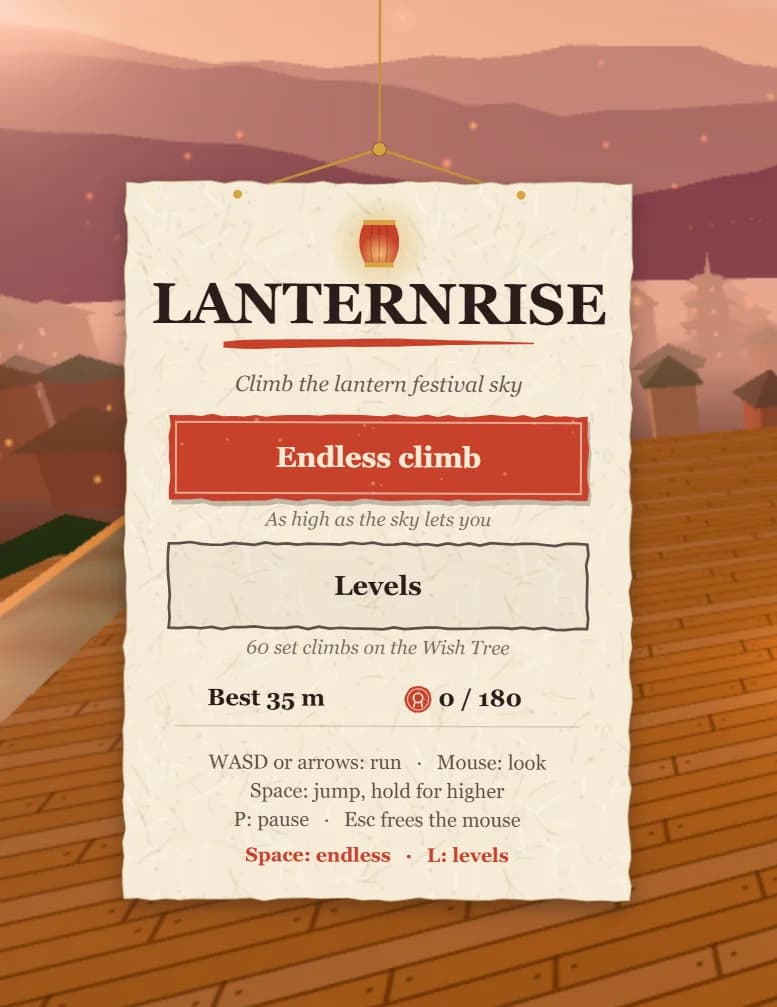
The game has to do its part as well. At Unihfy Games we test our games on modest laptops and phones, not just fast machines, and design them to stay steady rather than chase the sharpest picture. Our 3D climbing game Lanternrise, for example, quietly lowers its rendering resolution when frames start running late and raises it again once your device catches up, so the picture softens a little instead of turning choppy.
Myth vs Reality
The Myth
01Faster internet will fix a laggy browser game.
The Reality
Only in online multiplayer. A single-player game runs on your device once it has loaded.
The Myth
02My computer is too old for browser games.
The Reality
Many slow games on older computers come down to battery saver, disabled graphics acceleration or too many tabs. Fix those before blaming the hardware.
The Myth
03Clearing my cache will make games run faster.
The Reality
The cache only helps games load faster next time. Clearing all site data can also delete your saved progress.
The Myth
04Fullscreen is always smoother.
The Reality
Fullscreen can mean many more pixels to draw. On a big monitor, a smaller window is often smoother.
How It Flows
Work through these in order. The quickest and most common fixes come first, so most players are sorted before the end.
Set the system power mode to balanced or better, and turn off the browser's energy saver.
Close video tabs, calls and anything heavy. Shift + Esc in Chrome or Edge shows what uses the most.
Press Ctrl + 0 (Cmd + 0 on a Mac), and try a normal window if fullscreen is choppy.
Relaunch, then look for 'Hardware accelerated' next to WebGL on chrome://gpu or edge://gpu.
If the game runs better there, one of your extensions is the cause.
Play on a hard surface, and update the browser and graphics drivers.
Quick Reference
How many new pictures a game draws each second. Around 60 looks smooth on most screens.
How long one frame takes to make. At 60 FPS, each frame has about 16.7 milliseconds.
A short freeze caused by one frame taking much longer than the rest, even when the average frame rate is fine.
The delay between pressing a button and seeing the result on screen.
Letting the browser draw with your graphics chip instead of the main processor. Also called hardware acceleration.
The technology browsers use to draw graphics with your graphics chip. Most 3D browser games rely on it.
Quick Picks
Our games were made in-house at Unihfy Games and run in the browser with nothing to install. Try one before and after the checklist.
Arcade
A 3D climb through a glowing sky lantern festival, so it asks more of your graphics chip than a 2D game does.

Arcade
A fast runner where you flip gravity between two rails, so even a small hitch is easy to feel.
Puzzle
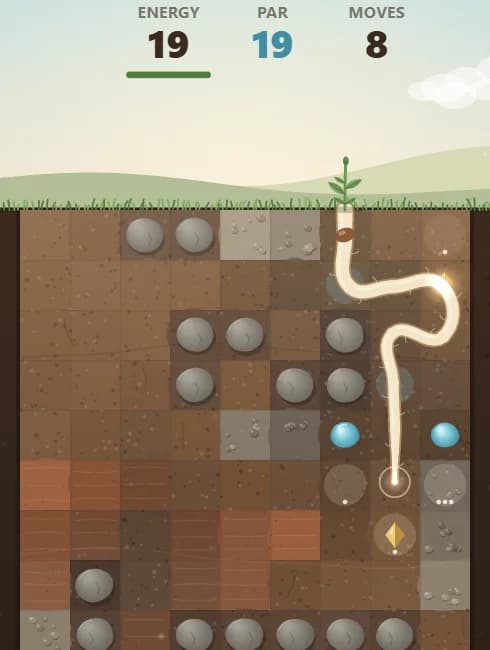
Grow a root down to water one cell at a time. Nothing rushes you, so it plays well on any device.

Puzzle
Search hand-drawn scenes for clues to wake up broken machines, with no timer pushing you along.
Lag is several problems that look alike. Work out whether you have a low frame rate, stutter, input delay or network lag, then start with the easy fixes: plug in, leave battery saver, close heavy tabs, reset the zoom and turn on graphics acceleration. Most browser games that feel slow are not too much for your computer; something around them is just getting in the way.
Guides
Discover what happens behind the scenes when an HTML5 browser game loads and runs. Learn how the browser downloads files, renders graphics, processes player input, plays audio, saves progress, and communicates with online services in this beginner-friendly guide.
Guides
Explore the complete history of browser games, from the earliest web experiments and Java applets through the Flash era, online game portals, HTML5, WebGL, WebAssembly, mobile browsers, and the technologies shaping modern browser gaming.
Guides
Learn how Unihfy Games tests browser games by checking first launch, controls, gameplay, objectives, progression, browser behavior, and the accuracy of player-facing information before publishing guides and reviews.
Guides
Learn the fundamentals of puzzle games with this beginner-friendly guide. Discover the main puzzle types, practical solving strategies, common mistakes to avoid, and simple habits that help you improve over time.
Continue Exploring
Jump into browser games or challenge yourself in Quiz Arena. There's always something new to discover.